This service implements the integration of Flux AI and can be used to generate images and other content.
API home page: Ace Data Cloud - Flux Image Generation
This article will introduce the integration instructions for the Flux Images Generation API, which can generate official Flux images by inputting custom parameters.
To use the API, you need to first apply for the corresponding service on the Flux Images Generation API page. After entering the page, click the "Acquire" button, as shown in the image below:

If you are not logged in or registered, you will be automatically redirected to the login page inviting you to register and log in. After logging in or registering, you will be automatically returned to the current page.
Upon your first application, there will be a free quota provided, allowing you to use the API for free.
First, understand the basic usage method, which involves inputting the prompt prompt, the action action, and the image size size to obtain the processed result. You first need to simply pass a field action with the value generate, and then we also need to input the prompt, as detailed below:
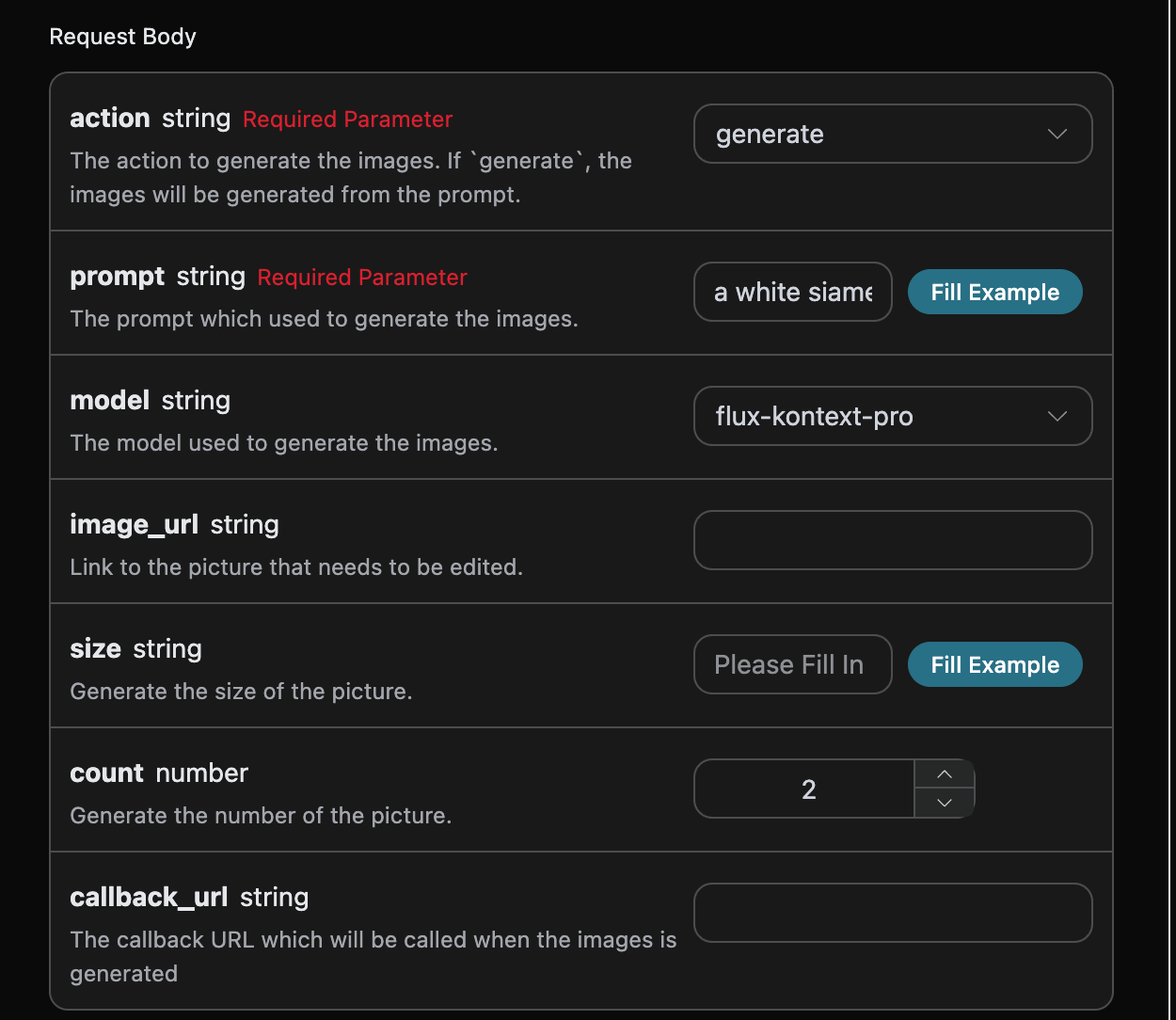
Here we can see that we have set the Request Headers, including:
accept: the format of the response result you want to receive, filled in asapplication/json, which means JSON format.authorization: the key to call the API, which can be selected directly after application.
Additionally, we have set the Request Body, including:
action: the action for this image generation task.size: the size of the generated image result.count: the number of images to generate, with a default value of 1; this parameter is only valid for image generation tasks and is invalid for editing tasks.prompt: the prompt.model: the generation model, defaulting toflux-dev.callback_url: the URL to receive the callback result.
After selection, you can see that the corresponding code is also generated on the right side, as shown in the image below:
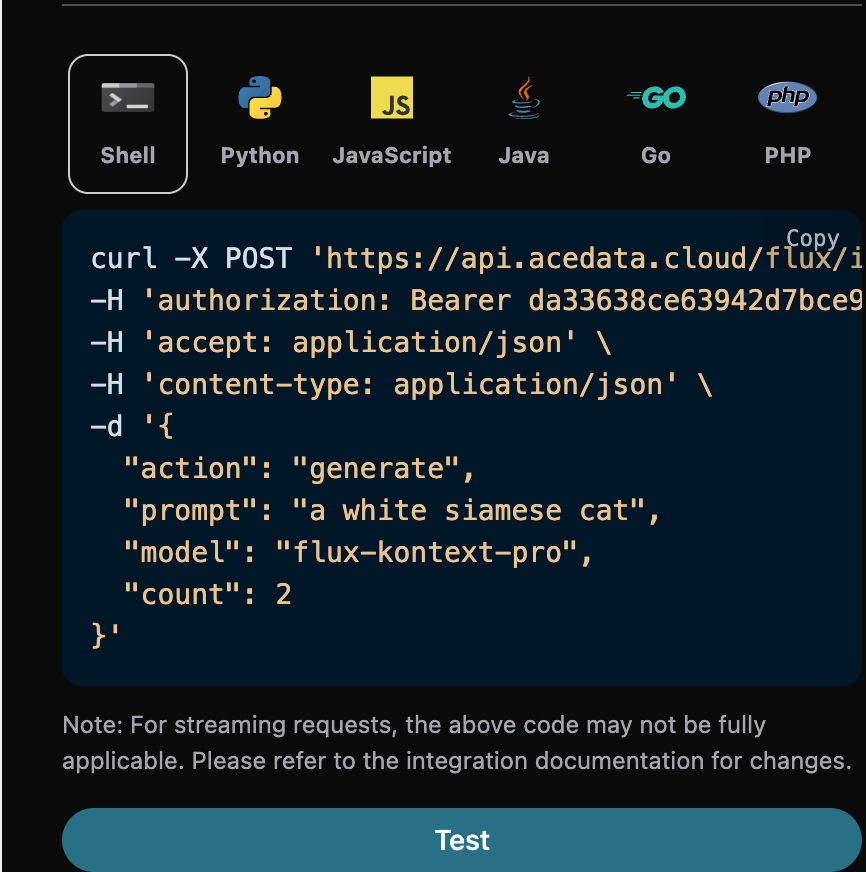
Click the "Try" button to test, as shown in the above image, and we get the following result:
{
  "success": true,
  "task_id": "226eb763-9eab-4d06-ad57-d59753a03307",
  "trace_id": "089f8b46-0167-4f25-88ee-3c3f88d80e84",
  "data": [
    {
      "prompt": "a white siamese cat",
      "image_url": "https://fal.media/files/lion/NVhtlwwGYQD6HrGaEfrzu_341484fad6d84b21b73f4f8824a3f98a.png",
      "timings": 1752743801
    },
    {
      "prompt": "a white siamese cat",
      "image_url": "https://fal.media/files/monkey/8UEQpFbQCYVOK1wKP3aV0_9bbc26fad64049b18d0244b99ef66ad1.png",
      "timings": 1752743801
    }
  ]
}
The returned result contains multiple fields, described as follows:
success: the status of the video generation task at this time.task_id: the ID of the video generation task at this time.trace_id: the tracking ID of the video generation at this time.data: the result list of the image generation task at this time.image_url: the link to the image generation task.prompt: the prompt.
We can see that we have obtained satisfactory image information, and we only need to retrieve the generated Flux images based on the image link addresses in data.
Additionally, if you want to generate the corresponding integration code, you can directly copy the generated code, for example, the CURL code is as follows:
curl -X POST 'https://api.acedata.cloud/flux/images' \
-H 'authorization: Bearer {token}' \
-H 'accept: application/json' \
-H 'content-type: application/json' \
-d '{
  "action": "generate",
  "prompt": "a white siamese cat",
  "model": "flux-kontext-pro",
  "count": 2
}'If you want to edit a specific image, you must first pass the image_url parameter with the link to the image that needs to be edited. At this time, action only supports edit, and you can specify the following content:
- model: the model used for this image editing task, which currently supports
flux-kontext-maxandflux-kontext-pro. - image_url: the uploaded image that needs to be edited.
An example of the input is as follows:
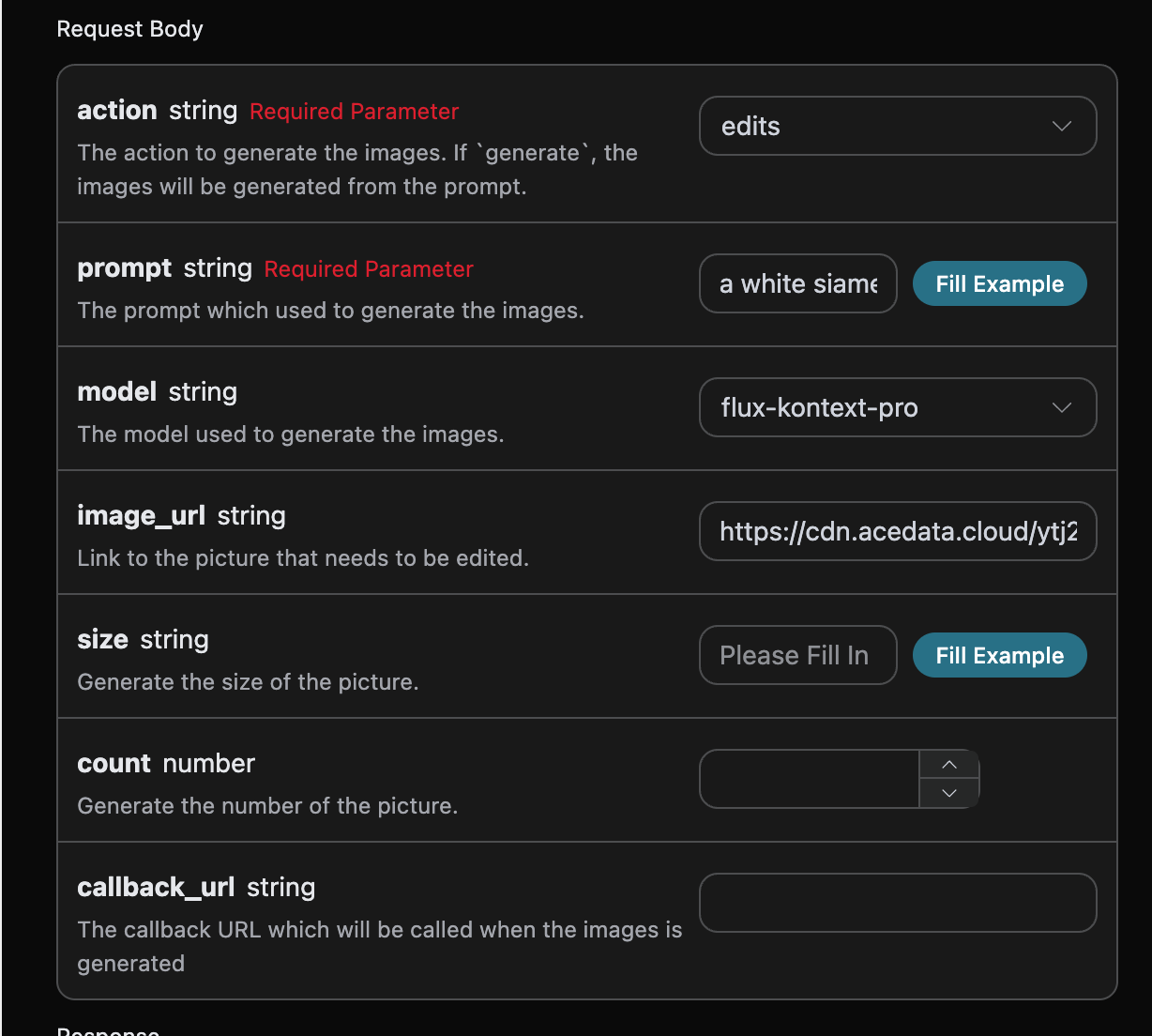
After filling in, the code is automatically generated as follows:
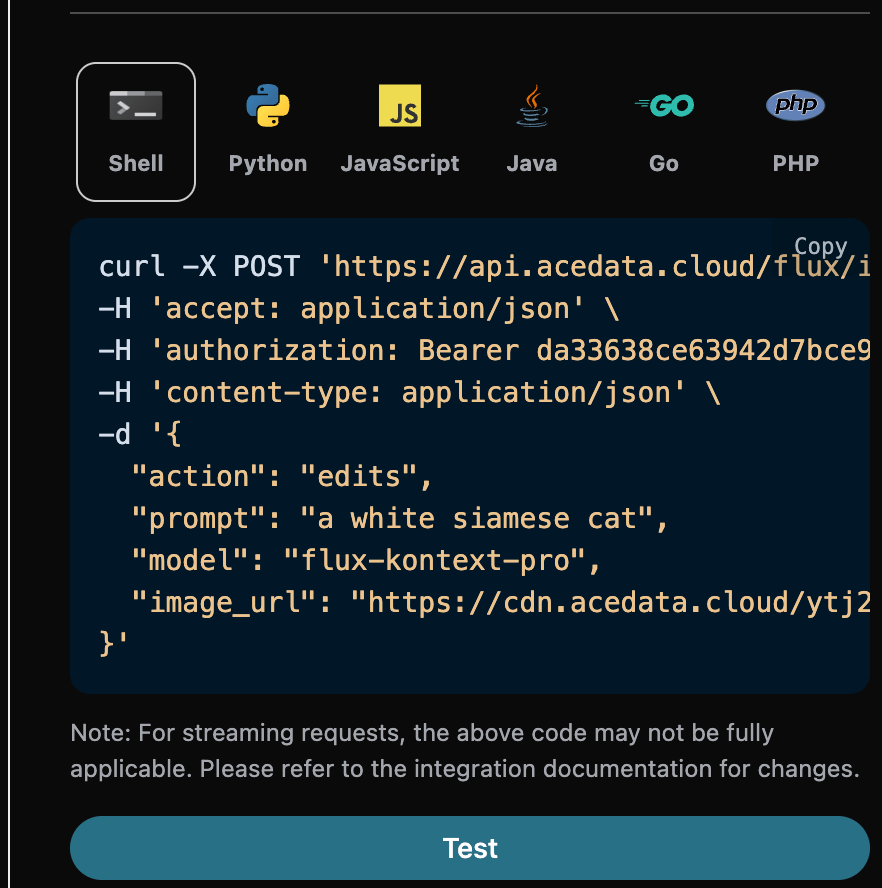
The corresponding code:
import requests

url = "https://api.acedata.cloud/flux/images"

headers = {
    "accept": "application/json",
    "authorization": "Bearer {token}",
    "content-type": "application/json"
}

payload = {
    "action": "edit",
    "prompt": "a white siamese cat",
    "model": "flux-kontext-pro",
    "image_url": "https://cdn.acedata.cloud/ytj2qy.png"
}

response = requests.post(url, json=payload, headers=headers)
print(response.text)
Clicking run, you can find that you will immediately get a result, as follows:
{
  "success": true,
  "task_id": "2a7979ff-1f77-4380-92c6-a2dc37c3b4c8",
  "trace_id": "732b65c0-48d9-49f7-b568-64e5acffe4c0",
  "data": [
    {
      "prompt": "a white siamese cat",
      "image_url": "https://fal.media/files/monkey/aEUXJZ6Faj9YXUCQVs01Q_af0cea56c558441c9ba8df67b200812d.png",
      "timings": 1752744073
    }
  ]
}
As we can see, the generated effect is the result of editing the original image, similar to the previous text.
Since the time taken by the Flux Images Generation API to generate images is relatively long, approximately 1-2 minutes, if the API does not respond for a long time, the HTTP request will keep the connection open, leading to additional system resource consumption. Therefore, this API also provides support for asynchronous callbacks.
The overall process is: when the client initiates a request, an additional callback_url field is specified. After the client initiates the API request, the API will immediately return a result containing a task_id field, representing the current task ID. When the task is completed, the result of the generated image will be sent to the client-specified callback_url in the form of a POST JSON, which also includes the task_id field, allowing the task result to be associated by ID.
Let’s understand how to operate specifically through an example.
First, the Webhook callback is a service that can receive HTTP requests, and developers should replace it with the URL of their own HTTP server. For convenience in demonstration, we use a public Webhook sample site https://webhook.site/. By opening this site, you can obtain a Webhook URL, as shown in the image below:
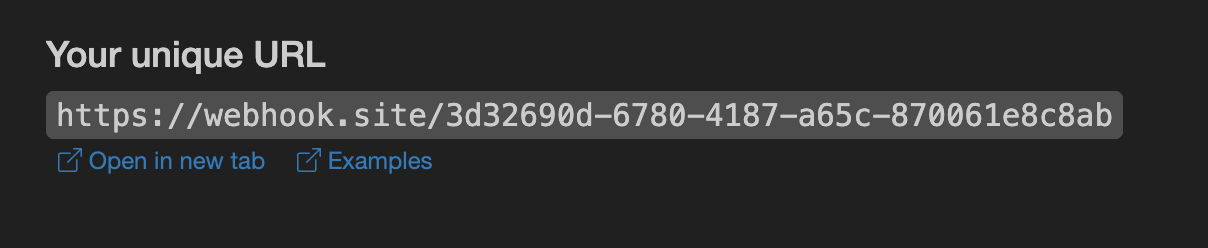
Copy this URL, and it can be used as a Webhook. The sample here is https://webhook.site/3d32690d-6780-4187-a65c-870061e8c8ab.
Next, we can set the field callback_url to the above Webhook URL, while filling in the corresponding parameters, as shown in the figure:
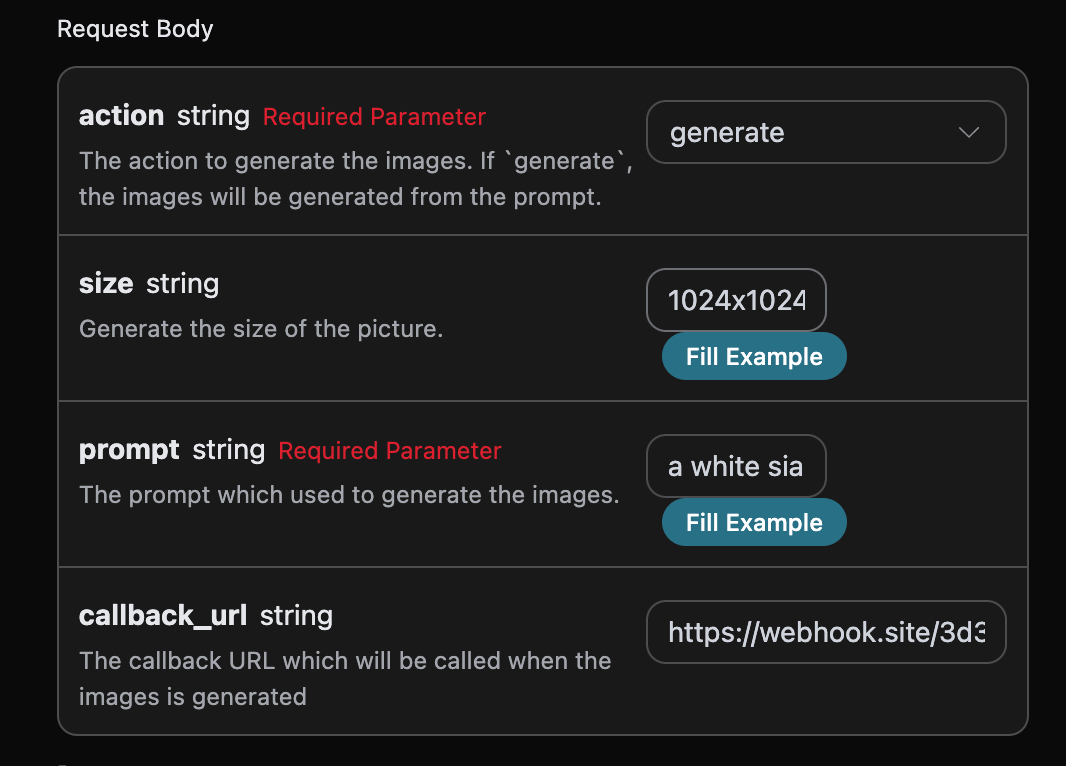
Clicking run, you will find that a result is obtained immediately, as follows:
{
  "task_id": "6a97bf49-df50-4129-9e46-119aa9fca73c"
}
After a moment, we can observe the generated image result at https://webhook.site/3d32690d-6780-4187-a65c-870061e8c8ab, as shown in the figure:
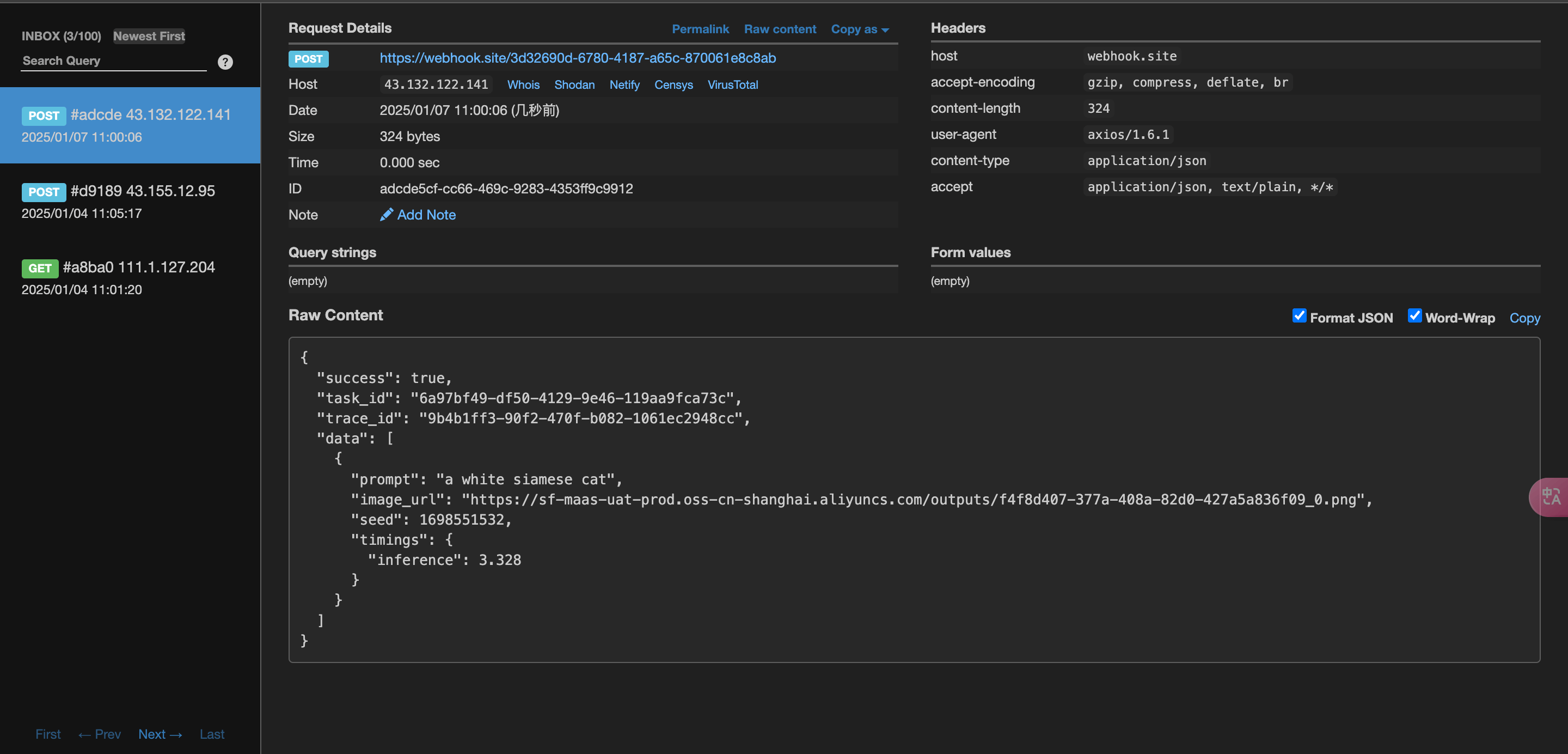
The content is as follows:
{
  "success": true,
  "task_id": "6a97bf49-df50-4129-9e46-119aa9fca73c",
  "trace_id": "9b4b1ff3-90f2-470f-b082-1061ec2948cc",
  "data": [
    {
      "prompt": "a white siamese cat",
      "image_url": "https://sf-maas-uat-prod.oss-cn-shanghai.aliyuncs.com/outputs/f4f8d407-377a-408a-82d0-427a5a836f09_0.png",
      "seed": 1698551532,
      "timings": {
        "inference": 3.328
      }
    }
  ]
}
It can be seen that the result contains a task_id field, and the other fields are similar to the above text, which allows for task association through this field.
When calling the API, if an error occurs, the API will return the corresponding error code and message. For example:
400 token_mismatched: Bad request, possibly due to missing or invalid parameters.400 api_not_implemented: Bad request, possibly due to missing or invalid parameters.401 invalid_token: Unauthorized, invalid or missing authorization token.429 too_many_requests: Too many requests, you have exceeded the rate limit.500 api_error: Internal server error, something went wrong on the server.
For more info, please check below APIs and integration documents.
| API | Path | Integration Guidance |
|---|---|---|
| Flux Images Generation API | /flux/images |
Flux Images Generation API Integration Guide |
| Flux Tasks API | /flux/tasks |
Flux Tasks API Integration Guide |
Base URL: https://api.acedata.cloud
If you meet any issue, check our from support info.